A reliable photography backup workflow is the least glamorous part of being a professional photographer, and it is the part that matters most. Cameras fail. Cards corrupt. Drives die. Laptops get stolen. In twenty seven years of shooting, I have learned that the photographer who survives is not the one with the best camera. It is the one whose files are still there in the morning. This guide gives you a complete photography backup workflow, built around the industry standard 3-2-1 rule and the on location habits that keep a shoot safe before you ever get home.
In This Guide
- The video that sparked this guide
- Why photographers lose files
- The 3-2-1 backup rule, explained
- My 7-step photography backup workflow
- Mistakes I see photographers make
- David's Take: my backup philosophy after 27 years
- Frequently asked questions
The Video That Sparked This Guide {#the-video}
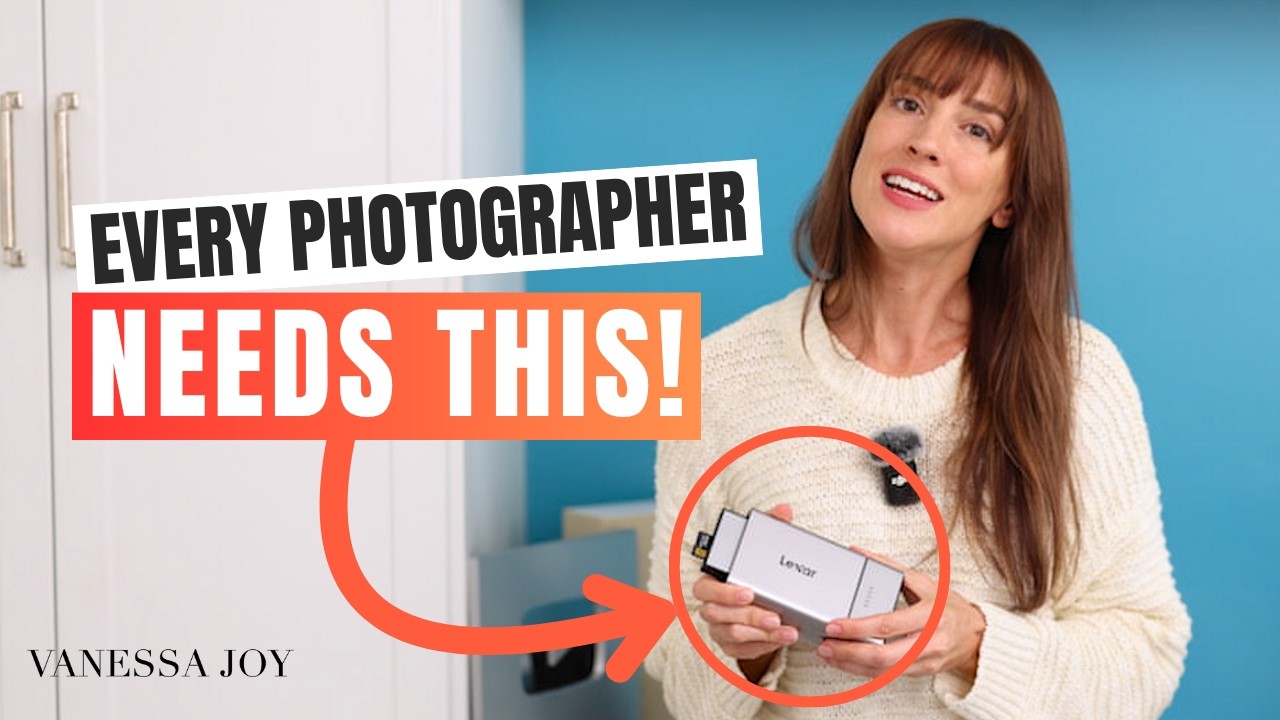
Educator and wedding photographer Vanessa Joy recently published a video called "The Easy Way to Backup Photos and Videos Without Missing a Shot," and the framing stuck with me: treat backup as something that happens during the shoot, not after. Her routine is built around never losing a wedding or portrait session to a failed or missing memory card.
Her key moves, in my own words: she offloads multiple card formats plus phone photos into one place while the event is still running. She pulls in a second shooter's cards and consolidates everything on the spot. A 2TB SSD serves as both the backup destination and the working drive, so editing begins immediately without copying files twice.
One honest note: the video centers on a specific portable dock product. The hardware is her choice. The workflow principles are universal, and they are what this guide is about. No brand replaces discipline.
Why Photographers Lose Files {#why-photographers-lose-files}
Every storage medium fails eventually. That is not pessimism, it is the starting assumption of every serious photography backup workflow. Memory cards corrupt. Portable drives get dropped. Laptops get stolen from cars. Cloud accounts get locked. And solid state drives, the medium many of us trust most, have a quiet failure mode: drives left unpowered in a drawer can suffer corrupted or lost data in as little as a year or two, according to PetaPixel's reporting on backup strategy, which cites Backblaze drive research. A drive sitting on a shelf is not an archive. It is a countdown.
The fix is not a tougher drive. It is a system with no single point of failure, plus habits that run automatically when you are tired and rushed.
The 3-2-1 Backup Rule, Explained {#the-3-2-1-backup-rule}
The 3-2-1 rule is the gold standard of data protection, and every photography backup workflow worth following is built on it:
- 3 copies of every important file.
- 2 different media types (for example, an SSD and a cloud service, or a portable drive and a NAS).
- 1 copy offsite (cloud storage, or a physical drive kept somewhere other than your studio).
PetaPixel's creator storage guide puts it plainly: three copies, two media, one offsite. The logic is simple. A house fire, a burglary, or a flood should never be able to take all three copies at once. And here is the part photographers get wrong: a RAID array is redundancy, not a backup. As that same guide notes, RAID is not a backup unless it contains data that is also stored elsewhere. RAID protects you from one drive failing. It does not protect you from theft, fire, accidental deletion, or ransomware. Count your RAID as one copy, then build the other two.
My 7-Step Photography Backup Workflow {#my-7-step-photography-backup-workflow}
This is the system I run for every paid shoot, scaled down or up depending on the job. It covers capture, the shoot itself, ingest, and long term archiving.
Step 1: Write to two cards in the camera
Redundancy starts before a single frame is backed up. If your camera has dual card slots, set the second slot to mirror the first. You now have two copies of every frame the moment you press the shutter, and a single card failure becomes an inconvenience instead of a catastrophe. If your camera has one slot, which is common on rangefinders and compact bodies, accept the risk honestly and make step 2 non negotiable. This is the cheapest insurance in photography: a second card you already own.
Step 2: Offload on location, during the shoot
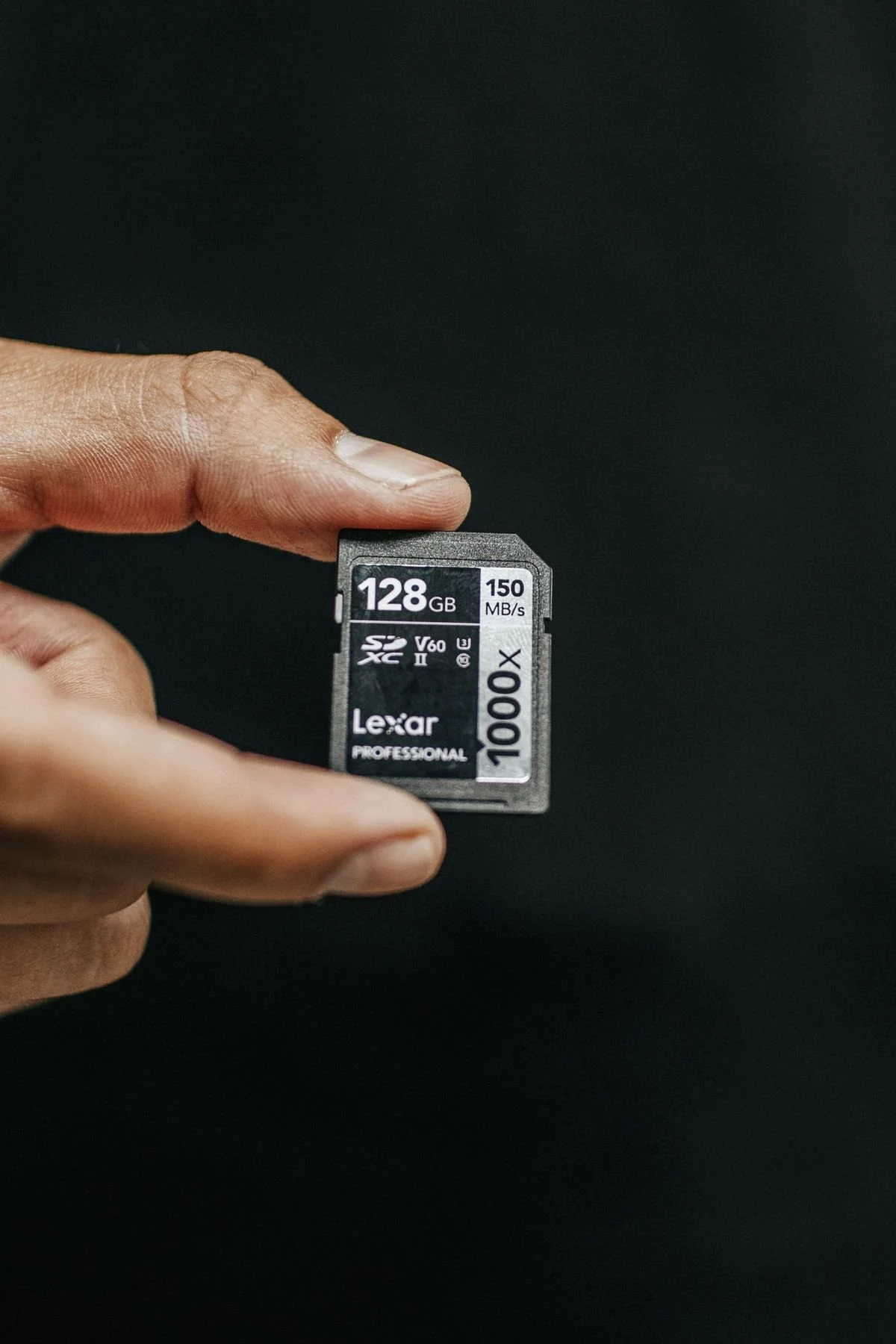
This is the habit the video above gets right, and it is the step most photographers skip. Do not let cards accumulate all day. During natural breaks, offload cards to a portable SSD and consolidate a second shooter's cards with yours. By the time you leave the venue, the shoot exists in two places: the cards and the SSD. One bag with one set of cards is one theft or fender bender away from nothing. Two locations before you leave.
Step 3: Make the SSD your working drive
Copying files twice wastes time and doubles the chance of a mistake. Instead, import directly from the SSD into your catalog and edit from it. Modern SSDs are fast enough to edit full resolution RAW files, which keeps a single source of truth through culling and editing. My rule: the working SSD holds the shoot from offload until the final gallery is delivered. If you want to speed up the part after backup, my guide to how to cull photos fast covers the AI first system I use on the working drive.

Step 4: Duplicate to a second local copy at home
When you get back, the shoot goes onto your studio storage as well. For most photographers that means an external drive or a NAS. If you run a RAID or mirrored NAS, remember the rule from above: that counts as one copy, and it counts as your fast local copy, not your safety net. Label drives by year and project so you can find anything in thirty seconds. A backup you cannot locate is barely better than no backup. For drive types, NAS sizing, and labeling discipline, the Societies' guide to backing up photography work is worth a read.
Step 5: Get one copy offsite, automatically
Offsite is the copy that survives the burglary, the fire, and the spilled coffee across the whole desk. Cloud backup is the simplest offsite for most photographers: Backblaze, Dropbox, Google Drive, or Adobe Creative Cloud storage all qualify. The key word is automatically. A backup that requires you to remember to drag a folder on a Sunday night will fail on the exact weekend you are exhausted. Set the sync once and let it run in the background after every import.
One 2026 change to know: Google ended the Drive for desktop to Google Photos folder sync in August 2026 (reported here), which broke the automatic pipeline many photographers used to get phone and camera uploads into Photos. If your offsite strategy depended on that sync, check that your current path still works and switch to direct cloud upload or a dedicated backup app if it does not.
Step 6: Verify, then format the cards
Never format a memory card until you have confirmed the files exist in at least two other places and at least one of them opens correctly. Spot check a handful of RAW files, not just the folder size, then format the cards in camera. Once a quarter, test a restore: pull an old project back from the cloud copy and confirm it opens. A backup you have never restored is a theory, not a backup.
Step 7: Maintain the archive once a year
Archives rot quietly. Once a year, plug in your cold storage drives, let them spin up, and check their health. Remember the PetaPixel reporting: SSDs left unpowered can lose data in as little as a year or two. Spinning the drives up and verifying a sample of files resets that clock and catches a dying drive before it matters. While you are in there, consolidate the year's finished projects onto your archive drives and confirm the cloud copies are current. One afternoon a year protects everything you shot.
Mistakes I See Photographers Make {#mistakes}
- Treating a single external drive as a backup. One drive is one copy. It is a copy, not a backup system.
- Counting RAID as the whole plan. RAID survives a drive failure. It does not survive theft, fire, or your own accidental delete key.
- Waiting until home to back up. The cards in your bag on the drive home are the most vulnerable files you will own all year.
- Never testing a restore. If you have never pulled a file back from your cloud copy, you do not have a backup. You have a hope.
- Formatting cards at the shoot. Cards get formatted at home, after verification. No exceptions, no matter how full they are.
- Letting archive drives sit for years. Unpowered SSDs degrade. Spin them up yearly and verify.
David's Take: My Backup Philosophy After 27 Years {#davids-take}
In 2000, I covered the Teen Choice Awards with a 2.1 megapixel Nikon Coolpix 950 while every other photographer in the room shot film. They developed film and printed slides. I sent my pictures digitally over a 56k modem and delivered that night. Digital gave me my career, and it taught me the first rule of the digital era: a file that exists in one place does not really exist.
Then came Miami. For four months I shot three to four models a day, hundreds of sessions, thousands of frames. At that volume you learn fast that talent is half the job. The other half is systems, including the system that makes sure every frame still exists when the client calls.
My philosophy is simple and it has not changed in 27 years: treat every shoot like it is irreplaceable, because to the client it is. A wedding happens once. A celebrity sits for you once. A brand campaign has one shoot day. My reputation is not built on the frames I take. It is built on the frames I deliver, every time, without excuses. The workflow above is how I keep that promise. It is not exciting. It is not a new camera. It is better than both, because it is the reason I am still here.
One more thing the video reminded me of: backup discipline is a form of respect for your own work. You spent years learning to see light, to direct people, to build a style. Protecting the files is protecting all of that. Do it during the shoot, do it automatically at home, and check it once a year. That is the whole secret.
Frequently Asked Questions {#faq}
What is the best backup strategy for photography?
The 3-2-1 rule: three copies of every important file, on two different media types, with one copy offsite. In practice: mirrored cards in camera, a portable SSD offloaded during the shoot, a studio drive or NAS at home, and an automatic cloud copy. No single failure, theft, or disaster should take all copies at once.
What is the 3-2-1 backup rule?
Three copies of your data, stored on two different types of media, with one copy kept offsite. For photographers, the two media types are usually a physical drive and cloud storage, and the offsite copy is the cloud. The rule is the industry gold standard because it protects against drive failure, theft, fire, and accidental deletion at the same time.
Is RAID a backup?
No. RAID is redundancy, not a backup. It protects you if one drive in the array fails, but it does not protect against theft, fire, flood, accidental deletion, or ransomware, because all of those take out the whole array at once. Count your RAID as one copy in your 3-2-1 system, then add a separate local copy and an offsite copy.
What cloud storage is best for photographers in 2026?
It depends on your volume and budget. Backblaze is the value pick for large archives, Dropbox and Google Drive are convenient for active projects and client delivery, and Adobe Creative Cloud storage integrates with a Lightroom workflow. Note that Google ended Drive for desktop to Google Photos folder sync in August 2026, so verify your current upload path still works. Whichever you choose, set it to sync automatically after every import.
Book Your Shoot With a Photographer Who Protects Every Frame
If you want portraits, headshots, or event coverage from a photographer with 27 years of experience and a workflow designed so no shoot is ever left to chance, I would love to hear about your project. Contact me here to book your session, and browse my recent work at dclee.net to see the style. For a look at how I run a full session from first inquiry to final gallery, read my portrait photography workflow guide. And when your keepers are culled, my comparison of frequency separation vs dodge and burn covers the two retouching techniques every portrait photographer should know.
What is your current backup system, and which step above are you going to add first? Leave a comment and tell me where your workflow stands.