Every few months a photographer asks me which editor they should commit to: Capture One or Lightroom. It is one of the most consequential decisions in a portrait photographer's career, because the software you choose shapes how fast you deliver, how skin tones render out of the gate, and whether a tethered fashion set runs smoothly or stalls in front of the client. In this Capture One vs Lightroom guide, I break down the seven differences that actually matter for portrait work in 2026, with a video lesson from M.D. Welch's PhotoKitchen channel comparing both programs' latest editions side by side.
Contents
- The Short Answer: Which Should a Portrait Photographer Choose?
- Watch: Capture One vs Lightroom Classic, 2026 Edition
- The 7 Differences That Matter for Portraits
- Which One Is Better for Beginners?
- What It Actually Costs to Switch
- My Take After 27 Years Behind the Camera
- Frequently Asked Questions
- Book a Shoot
The Short Answer: Which Should a Portrait Photographer Choose? {#short-answer}
There is no universal winner, and anyone who tells you otherwise is selling something. The honest verdict, echoed by in-depth comparisons like ExpertPhotography's 2026 head-to-head, is that the two programs optimize for different jobs.
Choose Capture One if you shoot tethered in a studio, need the most precise color control for skin, and deliver commercial or fashion work where the client is watching. Choose Lightroom Classic if you process high volumes of portraits, want the strongest AI masking, and live inside the Adobe ecosystem with Photoshop.
Many working pros end up using both: Capture One for tethered studio sessions and Lightroom for everything that needs to move fast. Here is the comparison at a glance:
| Capture One Pro | Lightroom Classic | |
|---|---|---|
| Best for | Tethered studio, fashion, commercial portraits | High-volume portraits, events, hybrid shooters |
| Tethering | Best in class, with Capture One Live remote review | Functional but basic |
| Color and skin tones | 8-channel Advanced Color Editor, dedicated skin-tone tools | Color Mixer plus AI-driven masks |
| Local retouching | True layers you can name and toggle | Brushes and AI masks, no true layers |
| Organization | Sessions (self-contained job folders) or catalogs | One catalog, cloud sync via Lightroom |
| AI features | Smart Adjustments, Face Focus, assisted culling | AI masking, Denoise, distraction removal |
| Price (2026) | About $18/month annual; perpetual license around $299 | About $20/month on the 1TB Photography Plan |
Pricing figures via picstack's 2026 comparison, which notes Capture One's mid-2026 price increase. Check both companies' current pages before you buy; these tiers shift.
Watch: Capture One vs Lightroom Classic, 2026 Edition {#the-video}
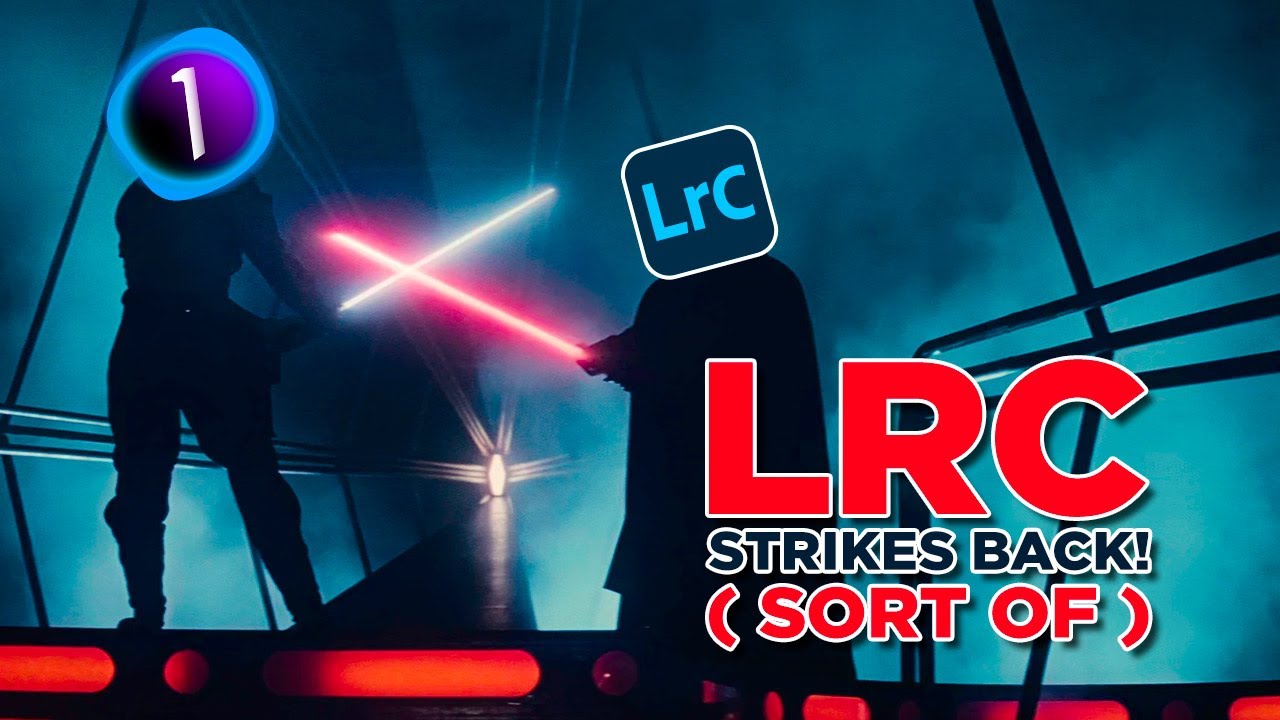
The video below is from M.D. Welch's PhotoKitchen channel, an educator who has run this exact comparison every year. In the 2026 edition he puts Capture One and Lightroom Classic side by side, walks through what is new in both programs, and measures the updates against the long-running rivalry between them. His honest framing: the 2026 updates from both companies are incremental rather than revolutionary, more of a refinement year than a reinvention.
That framing is useful because it tells you where the real decision lives. It is not in this year's feature list. It is in the fundamentals that have not changed for a decade: how each program renders your RAW files, how it handles skin, how it tethers, and how it organizes ten thousand frames. Those are the seven differences below, and they will still matter when the 2027 editions land.
The 7 Differences That Matter for Portraits {#seven-differences}
1. RAW Rendering and Color Science {#difference-1}
Open the same portrait RAW file in both programs with zero edits and they will not look the same. Each application applies its own interpretation of the sensor data before you touch a single slider. In side-by-side testing, ExpertPhotography found Capture One's default rendering slightly more saturated with lighter shadows, while Lightroom pulls a touch more information from fine detail. Both are excellent; they simply start in different places.
For portraits, the practical difference is skin. Capture One's color profiles have a long-standing reputation for rendering skin tones that land closer to correct on the first pass, which is one reason fashion and commercial studios standardized on it years ago. Lightroom's defaults can need a nudge on tricky mixed lighting, though its profiles have improved steadily. If your work lives and dies by out-of-camera skin, Capture One's starting point is the friendlier one.
2. Tethered Shooting {#difference-2}
This is the least debatable difference on the list. Capture One's tethered capture is widely considered the best in the industry: fast, stable transfers, Live View, remote camera control, and Capture One Live, which lets a client or art director watch the shoot and rate frames from a browser in another room. On commercial and fashion jobs with the client present, that alone justifies the software.
Lightroom Classic does support tethered capture for Canon, Fujifilm, Nikon, and Sony bodies, but it is functional rather than exceptional, and it is rarely anyone's reason for choosing Adobe. If you never shoot tethered, this difference costs you nothing. If you shoot tethered every week, it decides the whole comparison. My portrait photography workflow guide covers how a tethered session fits into the full path from first inquiry to final gallery.
3. Color Tools and Skin Tones {#difference-3}
Here is where Capture One earns its reputation with portrait photographers. Its Advanced Color Editor lets you click any color in the frame and adjust that exact range across eight channels in isolation, with dedicated controls for smoothness, hue, saturation, and lightness. There is even a separate section built specifically for skin tones, with sliders tuned to take dull skin to vibrant and true-to-life without dragging the rest of the image along.
Lightroom answers with its Color Mixer and, increasingly, with AI-driven local color work. For broad color grading it is fast and capable. But for surgical skin-tone work, isolating a magenta cast in shadow skin while leaving the background untouched, Capture One's color editor remains the more precise instrument. If your portraits go to print or to magazine, where color has to survive CMYK conversion and a press check, that precision is not a luxury.
4. AI Masking and Speed {#difference-4}
This is Lightroom's strongest counterpunch. Its AI masking can select subject, sky, background, and, when it detects a person, individual body parts, letting you fine-tune a portrait to a remarkable level of detail without building a single manual mask. Its one-click Denoise is among the best noise reduction available anywhere, which matters when you are shooting receptions or nightclub portraits at high ISO. Assisted culling helps pre-sort the keepers.
Capture One has closed the gap with Smart Adjustments, which match a reference image's exposure and white balance across a series, Face Focus for checking critical sharpness during the cull, and its own assisted culling. But on awkward subject detection and generative cleanup, Adobe still leads. If your portrait work is high volume, hundreds of frames per session rather than thirty hero shots, Lightroom's AI throughput is the difference between delivering Friday and delivering Monday. Speaking of volume, my guide to how to cull photos fast covers the AI-first culling system that pairs with either editor.
5. Layers and Local Retouching {#difference-5}
When a portrait needs serious local work, the two programs think differently. Capture One gives you true layers: each adjustment lives on a named layer you can toggle on and off with a click, compare before and after instantly, and revisit weeks later without guessing what that mask was for.
Lightroom works with brushes, gradients, and AI masks, which are powerful but anonymous. Photographer Eli Infante makes this exact point in his Fstoppers walkthrough on why he reaches for Capture One Pro: in Lightroom there is no way to label an adjustment, no quick way to toggle adjustments to compare versions, and no local control over HSL or tone curve the way Capture One's layers allow. If you have ever retouched a model's face with a stack of small brush adjustments and then tried to find the one that is causing the problem, you know exactly what he means.
For heavy retouching, both programs eventually hand off to Photoshop, which is where my frequency separation vs dodge and burn guide picks up the story. But the less round-tripping you need, the faster the job moves, and Capture One keeps more of the work in-house.
6. Organization: Sessions vs Catalog {#difference-6}
Capture One organizes work around Sessions: self-contained folders where one shoot, its adjustments, and its output live together and can be archived as a unit. It also offers traditional catalogs for long-term libraries. For job-based portrait and commercial work, Sessions match how photographers actually think: one client, one folder, done.
Lightroom Classic is built around a single catalog with collections, ratings, keywords, and metadata, plus cloud sync through Lightroom for working across devices. Its library management is stronger for photographers sitting on a decade of archives who need to find one frame from 2019 in ten seconds. Neither approach is wrong. Sessions suit shooters who archive by job; catalogs suit shooters who search by image.
7. Price and Ecosystem {#difference-7}
After Capture One's 6 percent price increase in mid-2026, Capture One Pro runs about $18 per month on an annual plan, with a perpetual buy-once license around $299 that does not include future feature updates. Adobe's entry point is now the 1TB Photography Plan at about $20 per month, which bundles Lightroom, Lightroom Classic, and Photoshop. On sticker price alone the two are nearly even.
The real cost difference is the ecosystem. Adobe's plan includes Photoshop, mobile apps, and the plugin market, and nearly every third-party tool a photographer adds, from AI culling to gallery delivery, builds its Lightroom integration first. Capture One is largely standalone. And if Photoshop is already in your process, the Photography Plan bundles both editors under one subscription. The cheapest software is the one you do not have to fight.
Which One Is Better for Beginners? {#beginners}
Lightroom, and it is not close. Its workspace is easier to navigate, its automatic subject, sky, background, and people masks let a new editor make selective adjustments immediately, and the learning resources are endless. Capture One's fully customizable interface is a strength for working pros and a maze for newcomers; that flexibility creates a steeper learning curve that pays off only after you have committed to it.
The beginner advice that actually matters: pick one and stay there for a year. Switching editors costs more than the license. Edit history does not transfer between Lightroom and Capture One, so migrated RAW files arrive unedited, and most photographers report two to four weeks of slower editing while muscle memory rebuilds. A year of deep skill in one program beats a year of shallow dabbling in two.
What It Actually Costs to Switch {#switching}
The subscription math is the smallest part of switching. The expensive parts are the ones nobody puts on a pricing page. Your presets do not transfer. Your edit history does not transfer. Your keyboard shortcuts live in your fingers, not in a settings file. Budget two to four weeks of measurably slower editing, and do not schedule the switch in the middle of wedding season or your busiest portrait quarter.
The smart way to decide is a live trial: take Capture One's 30-day trial, run one complete real job through it, from tethered capture or import through culling, color, retouch handoff, and export, then compare the clock and the results against your usual turnaround. If the trial does not clearly beat your current workflow on a real deadline, you have your answer. And while you are auditing your pipeline, track what the editing hours are actually worth; my guide on how to raise photography prices for 2027 starts from exactly that math.
My Take After 27 Years Behind the Camera {#my-take}
I have always been hands on with my projects. In my book I write about producing a large shoot in Jamaica, where my team and I were shooting during the daytime and editing at night, and I say it plainly: I would produce them, shoot them, edit them, cast them, you name it, I would have my hand in everything. That has been my approach for 27 years as a working photographer in Los Angeles and New York. The camera gets the glory, but the edit is where the job is finished, and I have never handed that part off lightly.
Here is what those years taught me about the Capture One vs Lightroom question. The software matters less than the discipline around it. I have watched photographers with the most expensive tools deliver sloppy, inconsistent galleries, and photographers with modest setups deliver work that looks like it came off a magazine press. The difference was never the slider. It was the system: cull before you edit, build one base look and sync it, save your export presets, and never re-decide the same thing twice.
For my own work, the choice has always followed the job. Tethered fashion and commercial sets, where the client is in the room and the color has to be right before the model changes looks, demand the precision tool. High-volume portrait delivery, where four hundred frames have to be consistent by Friday, demands the throughput tool. Anyone who tells you one program does both jobs best has not done both jobs.
My advice to younger photographers is the same advice I give about cameras: master one thing deeply before you collect a second. Pick the editor that matches the work you actually have, not the work you wish you had. Learn its keyboard shortcuts until they disappear. Build the workflow around it. The photographers who thrive are not the ones with the most software. They are the ones who show up, shoot, edit, and deliver, every single time, for 27 years.
Frequently Asked Questions {#faq}
Is Capture One better than Lightroom?
Neither is better overall; they optimize for different jobs. Capture One is stronger for tethered studio shooting, commercial and fashion work, and precise color control through its Advanced Color Editor. Lightroom Classic is stronger for high-volume portrait and event work, AI masking, and photographers already using Photoshop. If you shoot tethered, Capture One is the safer pick. If you process thousands of frames per job, Lightroom usually wins on throughput.
Which is better for portrait skin tones, Capture One or Lightroom?
Capture One has the edge for skin. Its Advanced Color Editor adjusts specific color ranges in isolation across eight channels, and it includes a dedicated skin-tone section for refining skin without affecting the rest of the image. Lightroom's Color Mixer and AI people masks are capable and improving, but for surgical skin-tone work, especially for print, Capture One's tools are more precise.
Which is better for beginners, Capture One or Lightroom?
Lightroom is generally better for beginners. Its workspace is easier to navigate, and its automatic subject, sky, background, and people masks help new editors make selective adjustments quickly. Capture One offers deeper customization, but that flexibility creates a steeper learning curve.
Can Capture One replace Lightroom?
Yes. Capture One can organize and edit RAW files without Lightroom, using either Sessions or Catalogs, and it is a particularly strong replacement for photographers who shoot tethered. Switching is less attractive if you depend on Adobe cloud syncing or regularly move images between Lightroom and Photoshop.
Can Lightroom shoot tethered like Capture One?
Lightroom Classic supports tethered capture with selected Canon, Fujifilm, Nikon, and Sony cameras, but Capture One remains the more studio-focused option, with tethering built around Sessions, Live View, camera controls, and the Capture One Live client-review workflow.
Book a Shoot {#book}
The right editor matters, but the right photographer matters more. I have spent 27 years shooting portraits, fashion, and celebrities across Los Angeles and New York, from magazine covers to red carpets, and every frame that leaves my studio goes through the kind of disciplined, color-critical workflow this guide describes. If you need portraits that look like they belong in print, book your shoot here. Tell me about the project and let us make something worth editing.
What is your current editing setup, Capture One, Lightroom, or both, and what made you choose it? Leave a comment below.